Compatibility
Which LG TVs work?
Kumi talks to your LG over your home Wi-Fi after you accept it on the TV. Nothing goes through our servers.
Works
- LG smart TVs with webOS
- OLED, QNED, NanoCell and UHD models with webOS
- Phone and TV on the same Wi-Fi network
Does not work
- LG TVs with NetCast (before webOS)
- TVs that are not connected to the network
- Guest networks that isolate devices
Setup
Connect your LG TV in three steps.
- 1
Join the same Wi-Fi
Your phone and your LG TV need to be on the same home network.
- 2
Pick your TV in Kumi
Open Kumi and choose your LG from the list, or enter its IP address.
- 3
Accept on the TV
Accept the prompt on your TV with the TV’s own buttons or remote. You only do this once.
No prompt on the TV? Turn on LG Connect Apps (called Mobile TV On on newer models) in the TV’s network settings and try again.
Features
Everything your LG remote does.
Touchpad and D-pad
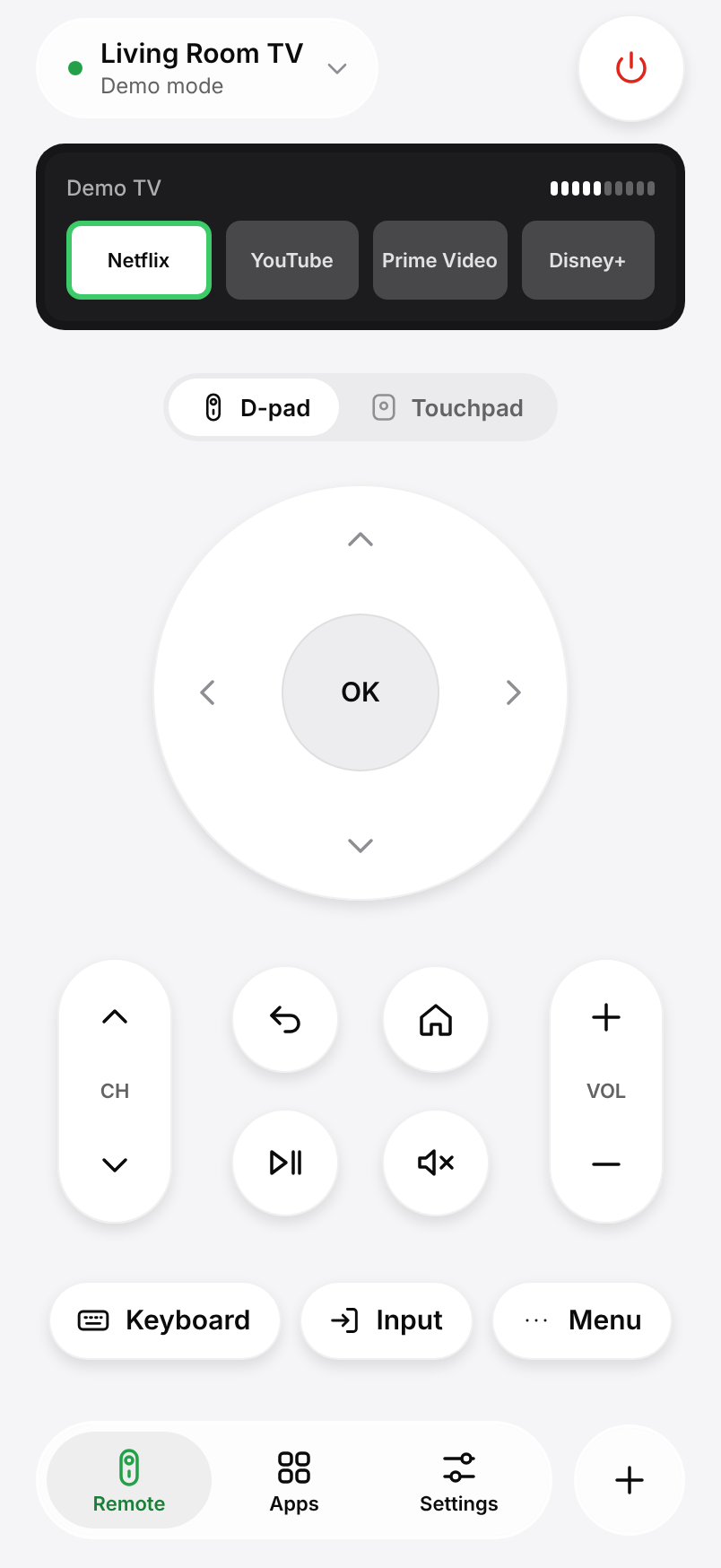
Swipe through menus or use the arrow keys, OK, Back and Home.
Type and talk
Search with your phone keyboard, or just say the title.
Open apps directly
Launch Netflix, YouTube and the rest from your phone.
FAQ
LG questions, answered.
Something else? Write to us from Settings › Help in the app.
Is Kumi made by LG?
No. Kumi is an independent app and is not affiliated with LG.
Do I need the LG ThinQ app?
No. Kumi connects to the TV directly over your Wi-Fi, without an LG account.
Is the LG remote free?
Yes. The remote, keyboard, touchpad and app launcher are free for one TV, with no ads.